Your First Note
Create a note
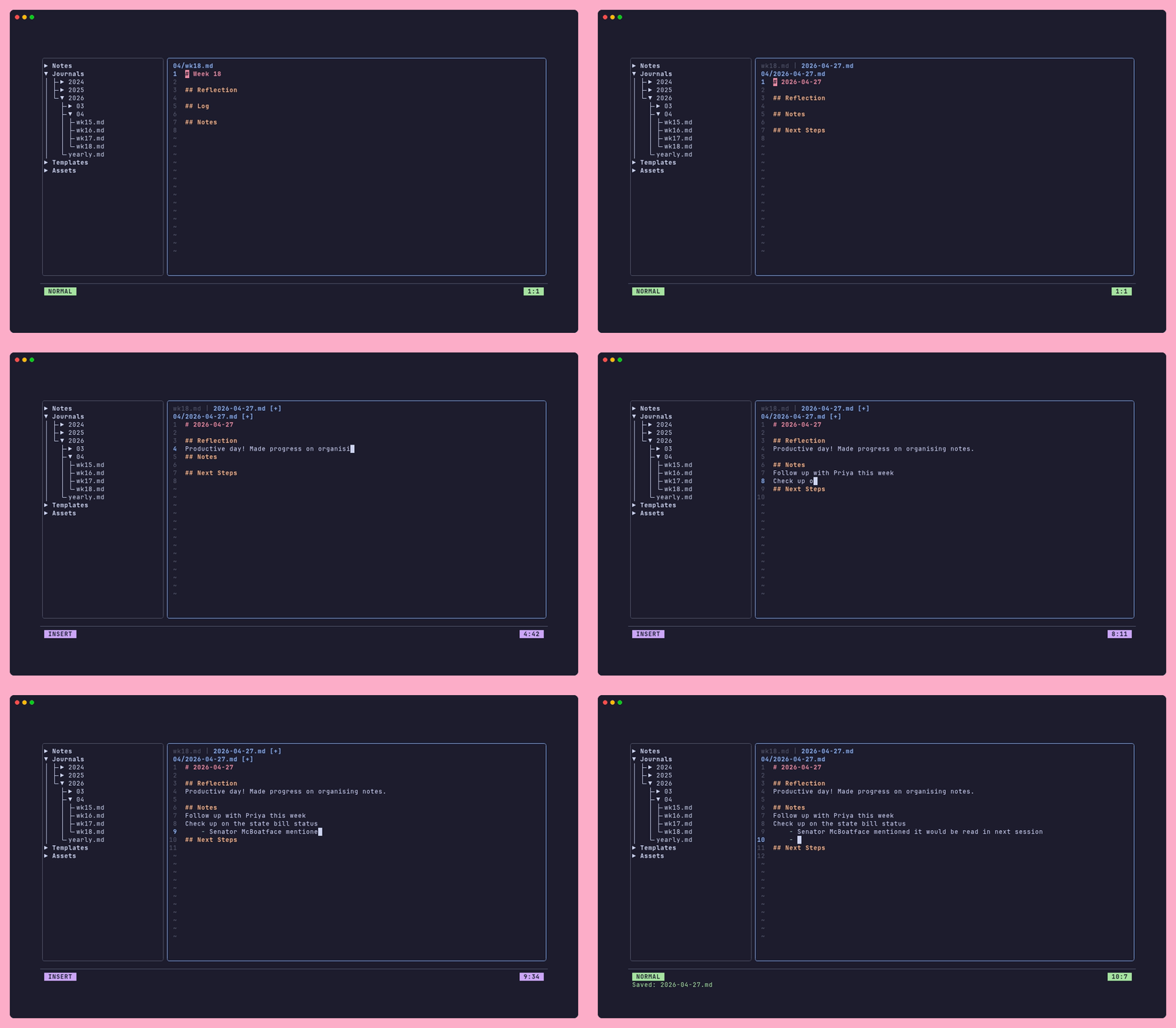
Jump to the command bar with : and run:
:noteAdd my-first-note
The note opens in the viewer. The file is saved as notes/my-first-note.md
inside your vault.
You can also use the command palette (ctrl+p) and search for "new note".
Editing modes
Fern has five modes. The current mode you are in is always shown in the bottom left corner of the status bar.
| Mode | How to enter | What it does |
|---|---|---|
| View | ctrl+e from Normal |
Pretty markdown rendering. Read-only mode. Best used for scrolling/folds if you're reviewing notes (esp longer ones). |
| Normal | ctrl+e from View or Esc any others |
Cursor movements and editing commands; Review notes. |
| Insert | i (before cursor) or a (after cursor) |
Typing freely, like any text editor |
| Replace | R |
Overwrites existing characters as you type out new ones |
| Visual | v (char) or V (line) |
Select text to copy, cut, or change. Allows for batch manpulation of text. |
When you first open a note, Fern starts in Normal mode (or View mode, depending on your start_mode setting).
Write something
- Press
ito enter Insert mode. - Type in some your text.
- Press
Escto return to Normal mode. - Press
ctrl+s(or type:win the command bar) to save.
Useful editing shortcuts (in Normal mode)
| Key | Action |
|---|---|
o |
New line below and enter Insert mode |
O |
New line above and enter Insert mode |
dd |
Delete the current line |
u |
Undo |
ctrl+r |
Redo |
t |
Toggle checkbox state |
T |
Insert a new checkbox item |
NOTE: Press ? at any time to see the full list of key shortcuts.
Journals
In addition to notes, Fern has a journal system. For example, to open today's daily journal entry (or create if it does not exist yet) we simply do:
:journalOpen today
Some other useful references:
:journalOpen yesterday
:journalOpen this-week
:journalOpen last-week
:journalOpen this-month
Next: Try the demo Vault