The Fern Interface
When you open a vault, the Fern window is divided into three immediately visible areas, shown here:
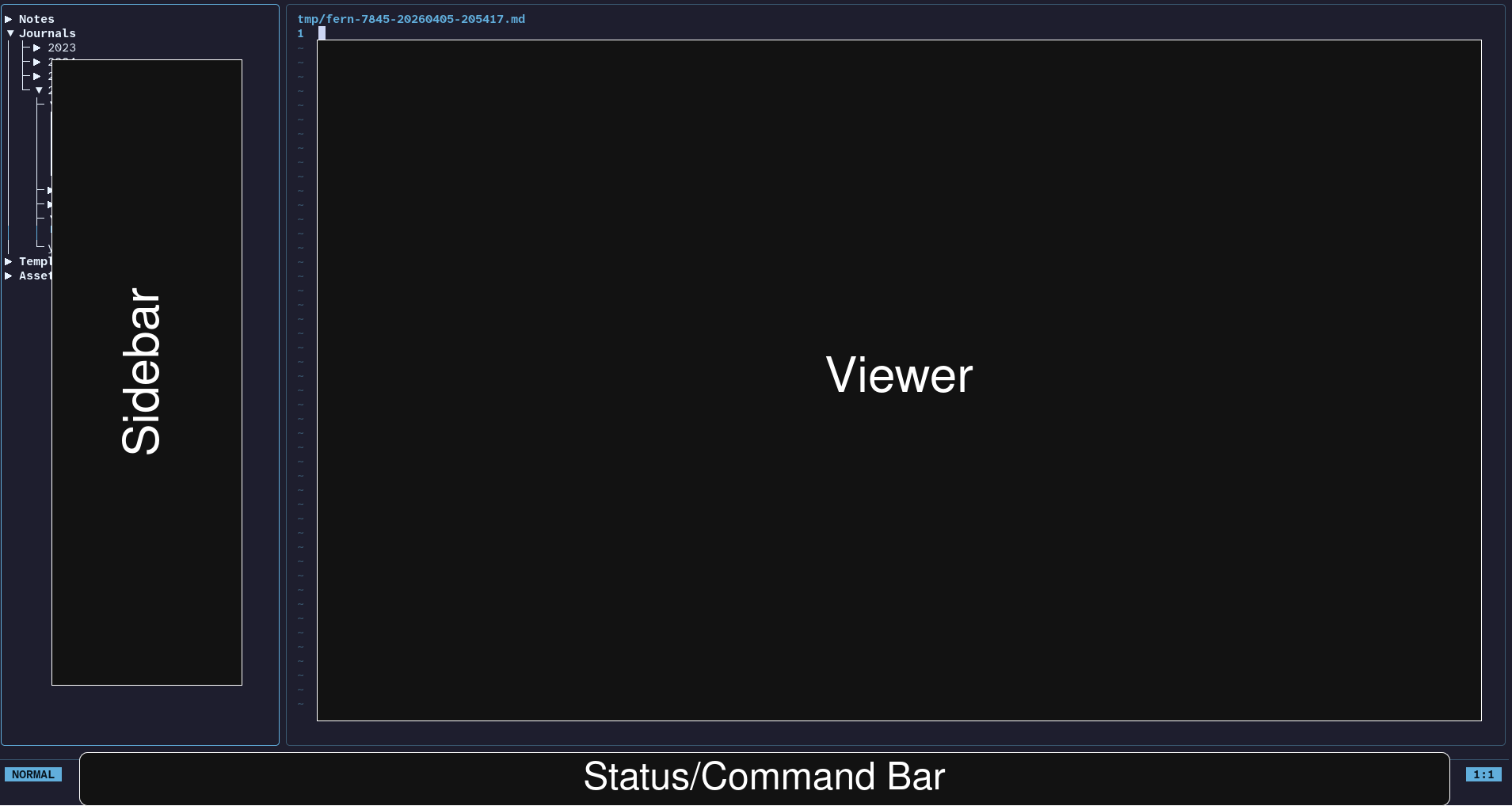
Sidebar
The sidebar is a collapsible file tree on the left side of the screen. It shows every file in your vault, grouped into three sections:
- Notes - everything inside
notes/, including any subfolders - Journals - entries inside
journals/, organised by date - Templates - files inside
templates/
Navigating the sidebar
| Key | Action |
|---|---|
ctrl+b |
Toggle the sidebar open/closed |
Tab |
Move focus between the sidebar and the viewer |
j / k |
Move down / up through the file list |
1 |
Jump to the Notes section |
2 |
Jump to the Journals section |
3 |
Jump to the Templates section |
Enter |
Open the selected file in the viewer |
l / h |
Expand / collapse a folder |
Viewer
The viewer is the main content area. It displays the currently open note and is where all reading and writing happens.
You can have multiple notes open at once using tabs and split panes.
Tabs
Each open file gets a tab shown at the top of the viewer. Switch between tabs
with [ and ], or move a tab left/right with { and }. Close the active
tab with ctrl+w.
Split panes
Split the viewer to see two notes side by side:
| Key | Action |
|---|---|
ctrl+w v |
Split vertically (side by side) |
ctrl+w s |
Split horizontally (top and bottom) |
| B | |
ctrl+h / ctrl+l |
Move focus to the left / right pane |
ctrl+j / ctrl+k |
Move focus to the pane below / above |
The viewer operates in one of five modes at any time. The current mode is always shown in the status bar at the bottom. See Your First Note for a full breakdown of the modes.
Command / Status Bar
The thin bar along the bottom of the screen serves two purposes.
As a status bar it shows:
- The current editing mode (View, Normal, Insert, Replace, Visual)
- The name and path of the open file
- The cursor line and column position
- Any informational messages or warnings from the last command
As a command bar press : from Normal or View mode to open it for input.
Type a command and press Enter to run it, or Esc to cancel.
Example commands:
:noteAdd my-note         create a new note
:journalOpen today       open today's journal
:w                       save the current file
:q                       quit
For the full list of command bar commands, see the Command Bar reference.
Press ? to open the in-app keybinding reference at any time.
Command Palette
The command palette is "hidden" area of Fern. It is a togglable interface area that offers a searchable overlay that gives quick access to every action in Fern without needing to remember any command syntax. It makes getting started with Fern a breeze!
- Open it with
ctrl+pfrom any mode. - Start typing to filter the list by name. Use
j/kor the arrow keys to move through the results. - When you've found the command you're after, press
Enterto run the selected action.
NOTE: Commands are roughly grouped by the object that they affect(Journals, Notes, Links, Templates, etc). Use that prefix as an quick way to filter down to the command you need.
The palette only shows commands that are valid in your current mode, so the list automatically changes based on what is actually available to you in the moment.
For a full list of every palette command, see the Command Palette reference.