Link Your Notes
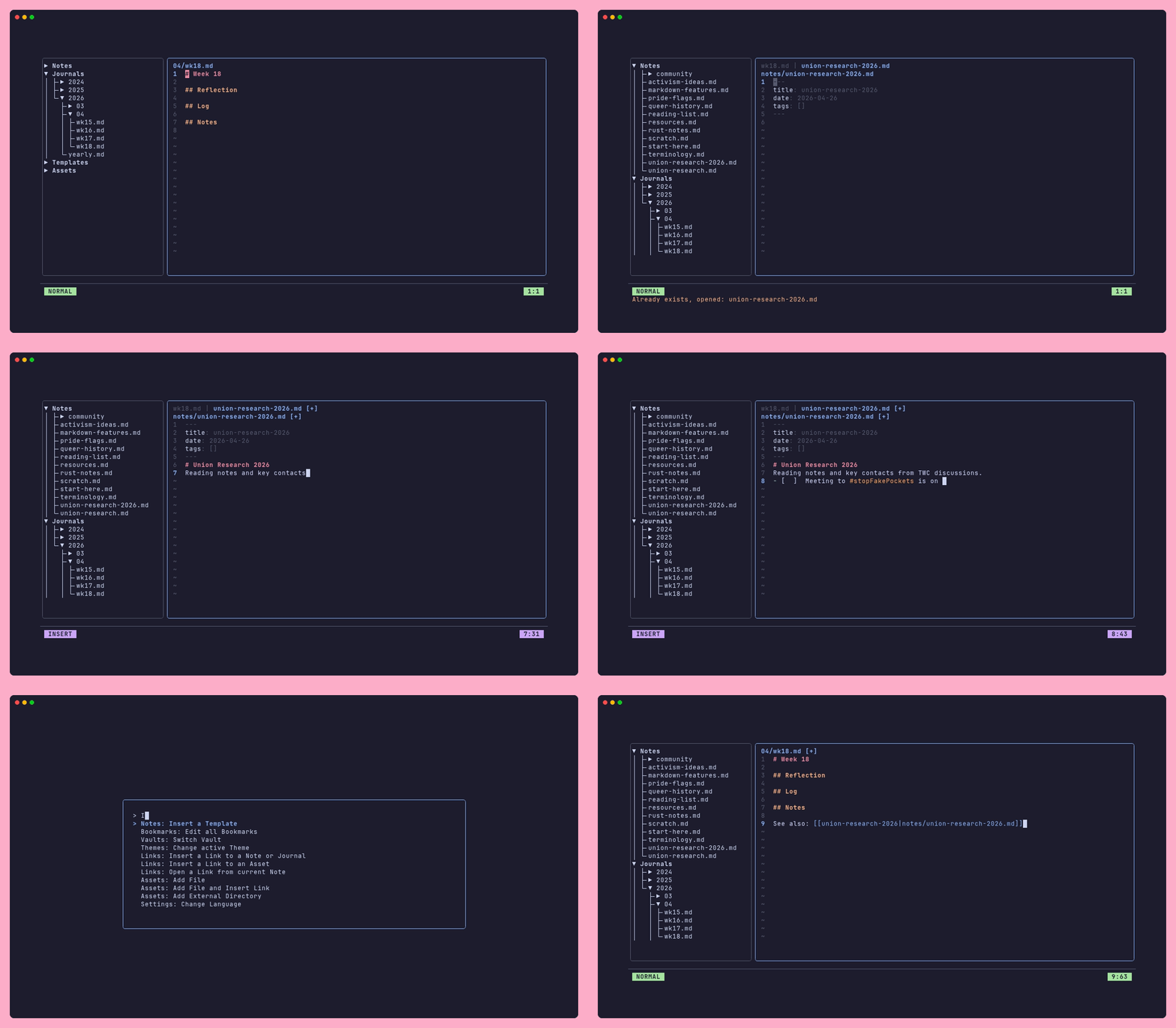
Linking notes turns a collection of files into an interconnected knowledge base. Fern supports two link styles and keeps them up to date automatically.
Two link styles
Wikilinks
Wikilinks use double square brackets around the note name (without the file extension):
[[meeting-notes]]
With a display alias (the text shown differs from the filename):
[[meeting-notes|last Thursday's meeting]]
Link to a note inside a subfolder using the vault-relative path:
[[community/events-calendar]]
Markdown links
Standard markdown link syntax:
[last Thursday's meeting](community/meeting-notes)
Which style to use
Both styles work in Fern. Choose based on your preferences or the tools you use to read your notes outside of Fern.
The link_format config option controls which style Fern uses when it inserts links automatically (for example, from search results):
# in ~/.config/fern/config  or  {vault}/.fern/config
link_format = wiki       # [[note-name]]  (default style)
link_format = markdown   # [title](note-name)
You can always write either style by hand regardless of this setting.
Following a link
In Normal mode, place your cursor on a link and press gf. Fern resolves the
link and opens the target note in the current pane.
In View mode the cursor is not positioned on individual links, so gf is not
available. Use the command palette instead: press ctrl+p and search for
"Open a Link from current Note". Fern lists every link in the open note and
opens whichever one you select.
Unresolved links
If a link points to a note that does not exist, Fern renders it in a different
color to signal the broken reference. You can still press gf on it - Fern
will offer to create the note.
Full-text search
Press / from anywhere to open the vault search. Results are ranked by
relevance and support regular expressions. Press Enter on a result to open
that note.
You can also select text in Visual mode and press s to search the vault for
the selected text.
Automatic link rewriting on rename
When you rename a note with :noteRename <new-name>, Fern uses it's database indexing to quickly find every note in your vault with a link to the old file and rewrites them to point to the old name.
Both wikilinks and markdown links are updated.
This means you can freely reorganize and rename notes without accumulating dead links!
Opening links in a split
You can open a linked note side-by-side using split panes:
- Split the pane first:
ctrl+w v(vertical) orctrl+w s(horizontal). - Move focus to the new pane:
ctrl+l(orctrl+h/ctrl+j/ctrl+k). - Navigate to the note you want.
Or, with the cursor on a link in Normal mode, split then press gf.
That covers the core workflow. Next, learn how to make Fern feel like yours: Personalizing Fern